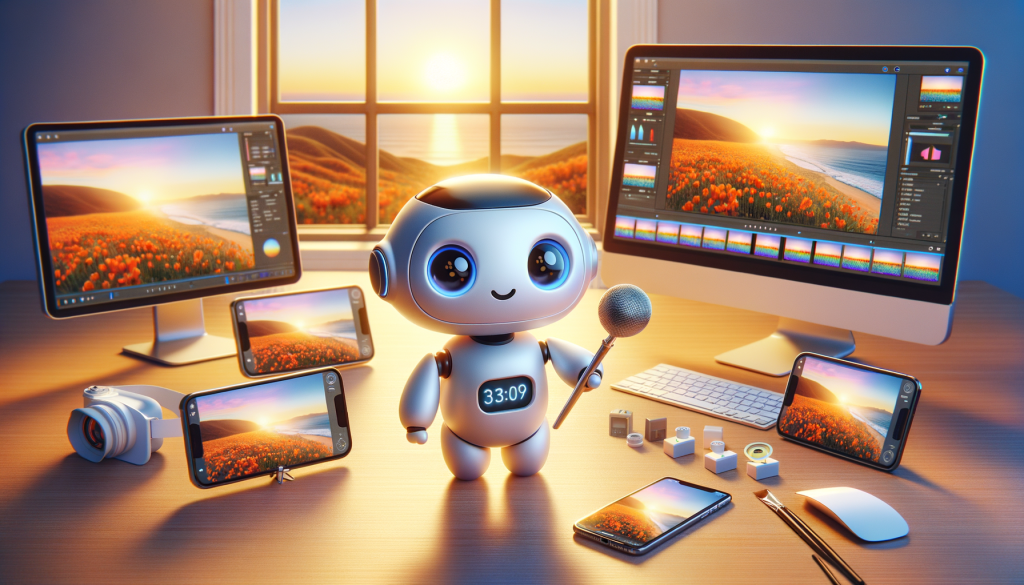
Creating a video with Midjourney is an exciting process that combines the power of AI-driven image generation with the dynamic appeal of motion graphics. Here is a guide on how to create a video using Midjourney, leveraging its unique features such as the –video parameter. This feature allows you to generate a short movie showcasing the creation of your initial image grid, adding an intriguing visual narrative to your AI art.
Understanding the Video Parameter in Midjourney
- Parameter Usage: The –video parameter in Midjourney is specifically designed to create a short movie of your image grid generation process.
- Model Compatibility: It is compatible with Model Versions 5, 5.1, 5.2, niji 5, and Legacy Model Versions 1, 2, 3, test, and testp.
- Limitation: Note that the –video feature works exclusively on image grids and not on upscaled images.
Step-by-Step Guide to Creating a Video with Midjourney
1. Initiating the Process
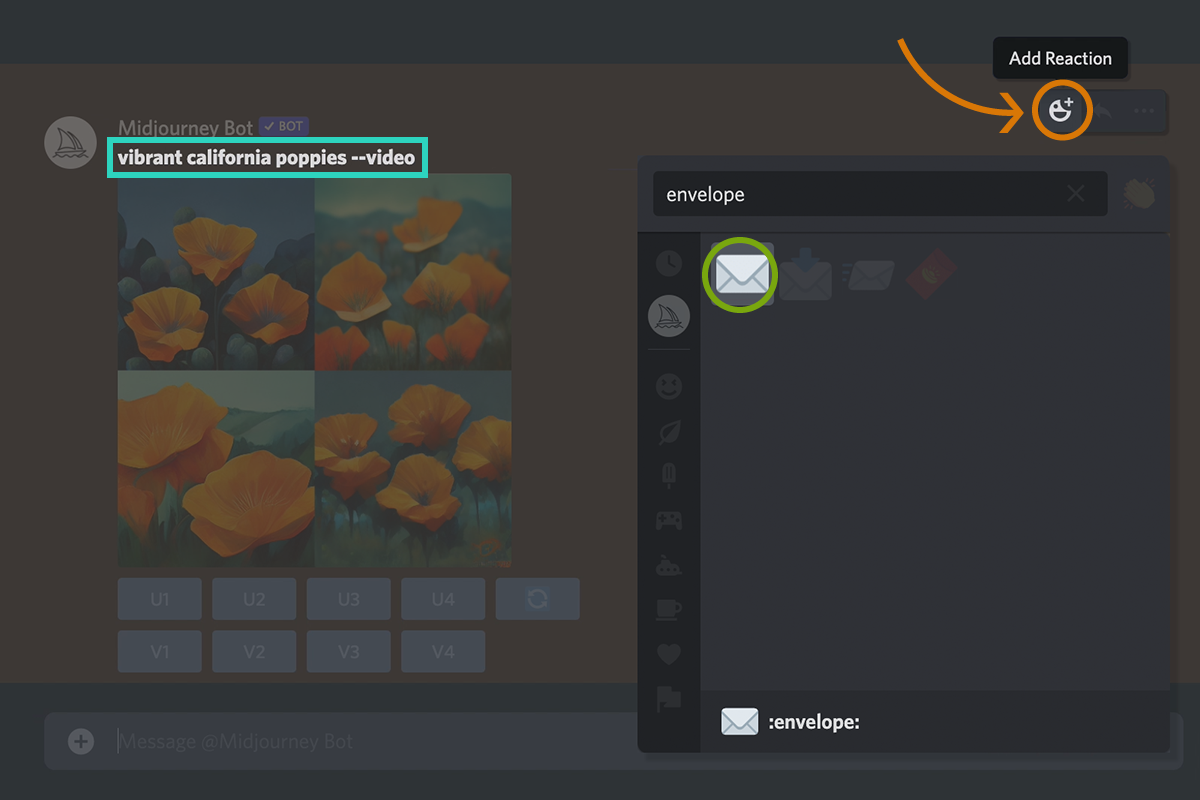
- Begin by adding –video to the end of your prompt. For example: /imagine prompt Vibrant California Poppies –video.

- This command prompts Midjourney to not only generate the image grid but also to create a video of this process.
2. Reacting to the Finished Job
- Once the job has completed and the image grid is generated, you need to interact with the Midjourney Bot.
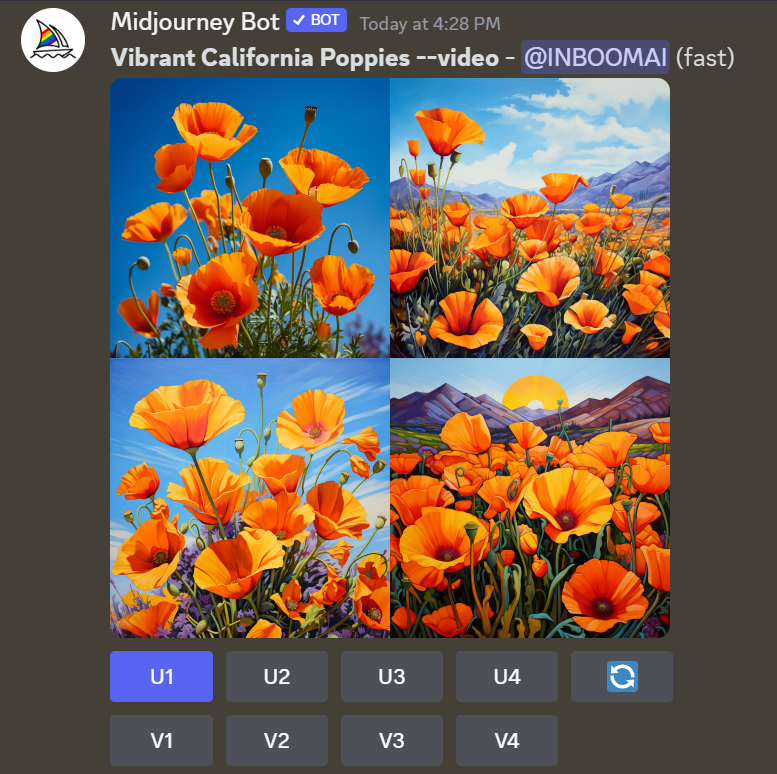
- Click on ‘Add Reaction’ under the completed job and select the ✉️ Envelope emoji.
-
3. Receiving and Accessing the Video
- After reacting with the envelope emoji, the Midjourney bot will send a direct message to you with a link to the video.
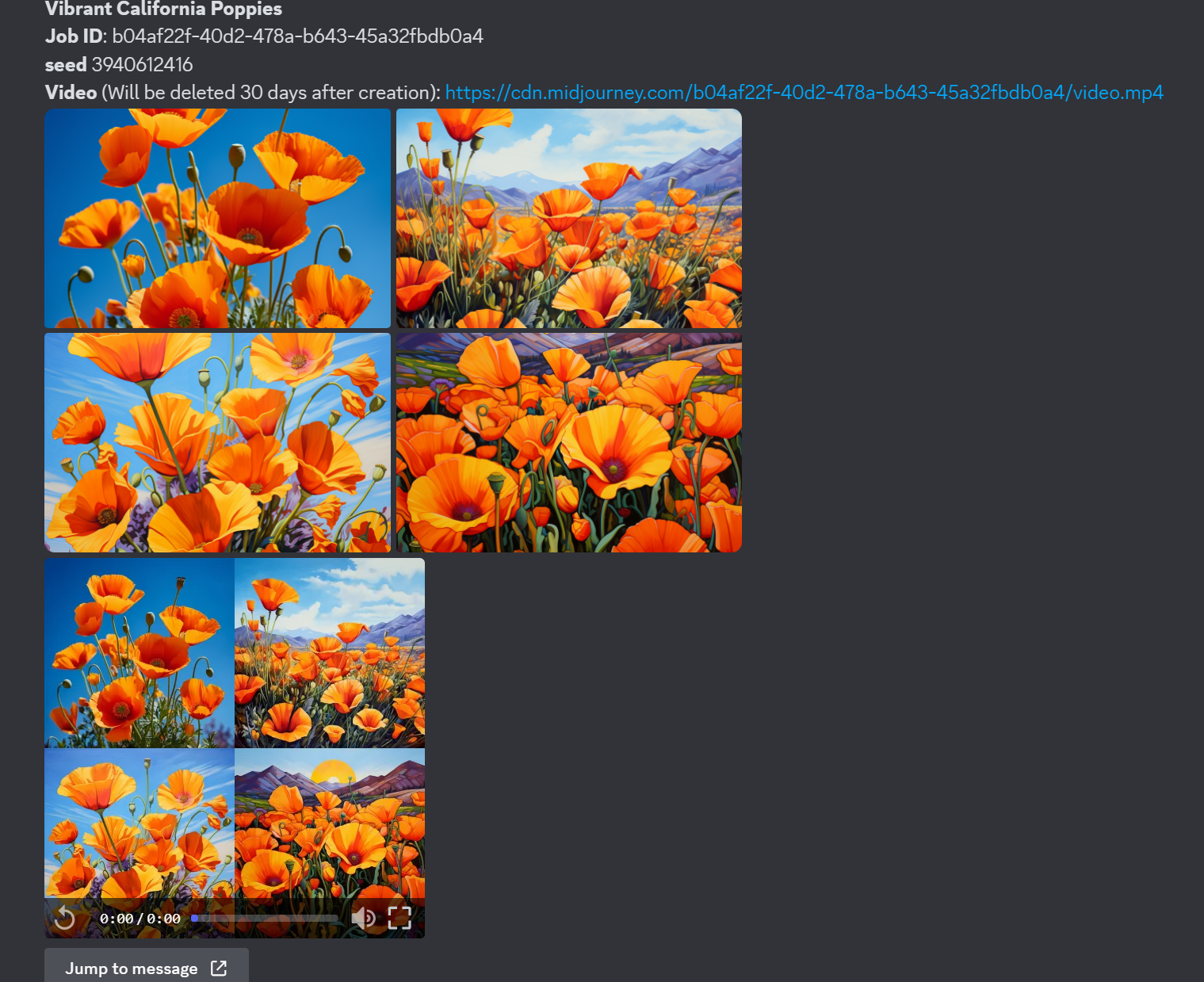
- Click on this link to view your video in a browser. To download the video, right-click (or long-press if you are on a mobile device) and save the video to your device.
Video Examples
Animated Gifs of Movies Created Using the Midjourney Video Parameter
- Vibrant California Poppies: An example of a vibrant, colourful representation of California poppies, showcasing the transition from initial concept to final imagery.
- Sunset on the beach.
Tips for Effective Video Creation
- Clear Prompts: Use descriptive and clear prompts to guide the AI in generating relevant image grids.
- React Promptly: Ensure to react with the envelope emoji as soon as the job is completed to receive your video link without delays.
- Experiment with Different Themes: Try various themes and styles in your prompts to explore the diverse capabilities of Midjourney’s video feature.
Conclusion
In conclusion, the journey of creating a video with Midjourney represents a fascinating blend of artistic creativity and technological innovation. By integrating the –video parameter, users can transform the static process of AI-driven image generation into a captivating, dynamic visual narrative. This feature not only showcases the fascinating progression of your image grid but also adds a layer of depth and engagement to your AI art.
The compatibility of the –video parameter with various model versions, coupled with the straightforward process of initiating the video creation and receiving the final product, makes it accessible for both novices and experienced users alike. The examples of ‘Vibrant California Poppies’ and ‘Sunset on the Beach’ demonstrate the versatility and richness that this feature can bring to different themes and artistic concepts.
Adopting effective strategies like using clear prompts, reacting promptly, and experimenting with different themes further enhances the experience, allowing users to explore the full potential of Midjourney’s video feature. Whether for artistic presentations, educational content, or personal exploration, creating a video with Midjourney offers a unique opportunity to witness and share the magic of AI-generated art unfolding over time. This process, therefore, is not just about the final output but also about appreciating the journey of creation, marking a new frontier in the realm of digital art and storytelling.